llama.cpp AMD Command Center
Run AI models privately on your AMD Radeon PC and use them in VS Code Copilot Chat, set up from one friendly Windows menu. No subscription and no cloud account.
Community project. An independent helper around llama.cpp. It is not affiliated with, endorsed by, or published by ggml-org, AMD, Microsoft, GitHub, Continue, Cline, or Anthropic.
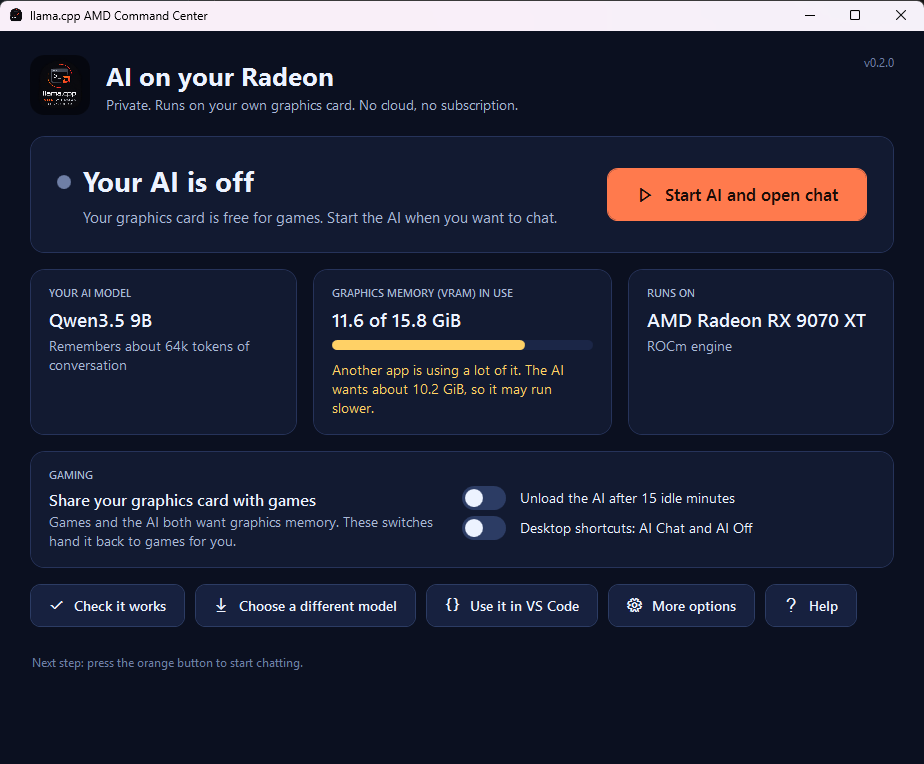
Start-LlamaCpp.cmd: one big button for what to do next, plus your graphics memory and gaming switches.Desktop app (new in v0.2.0)
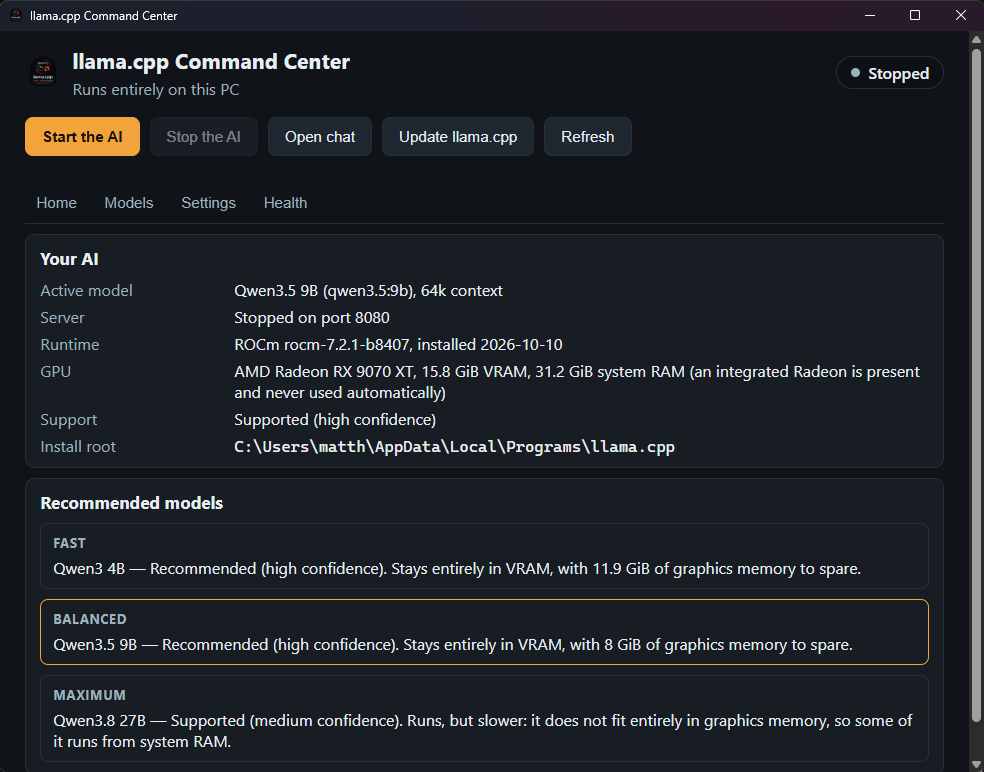
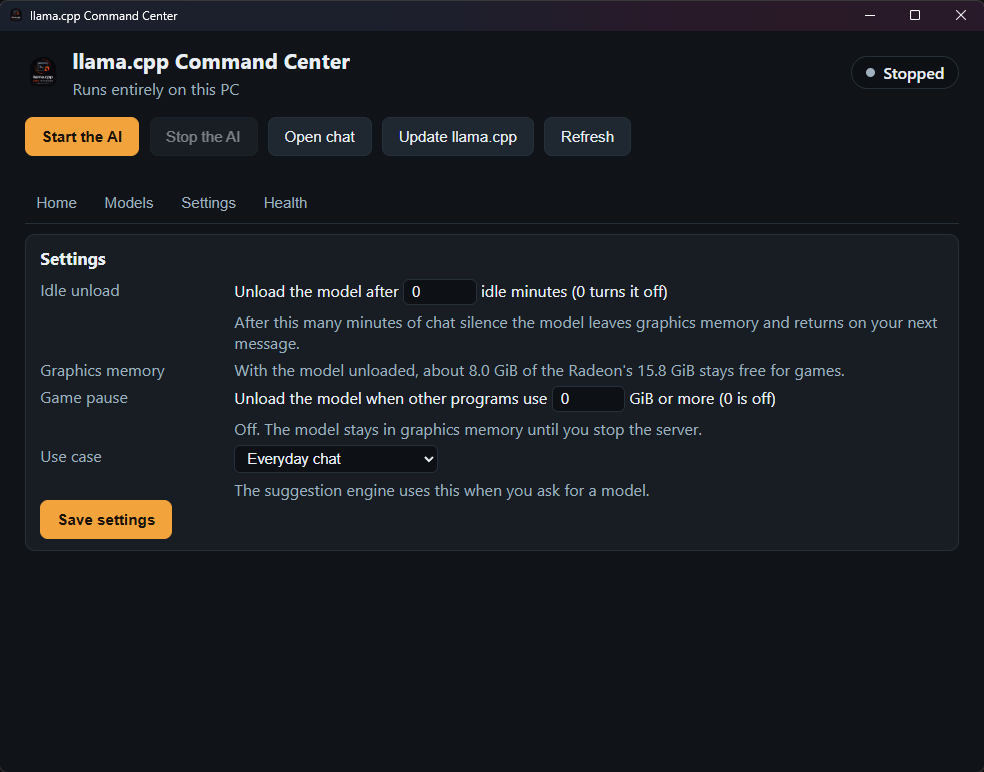
A normal Windows window with tabs for Home, Models, Settings and Health. The status badge shows Running, Starting, Stopped or Asleep, and the server buttons stay in view while you scroll. A Windows installer is attached to each release; it needs no administrator rights.
What you get
Private, local AI
The model runs on your own Radeon graphics card. Your code and questions stay on your PC.
Guided setup
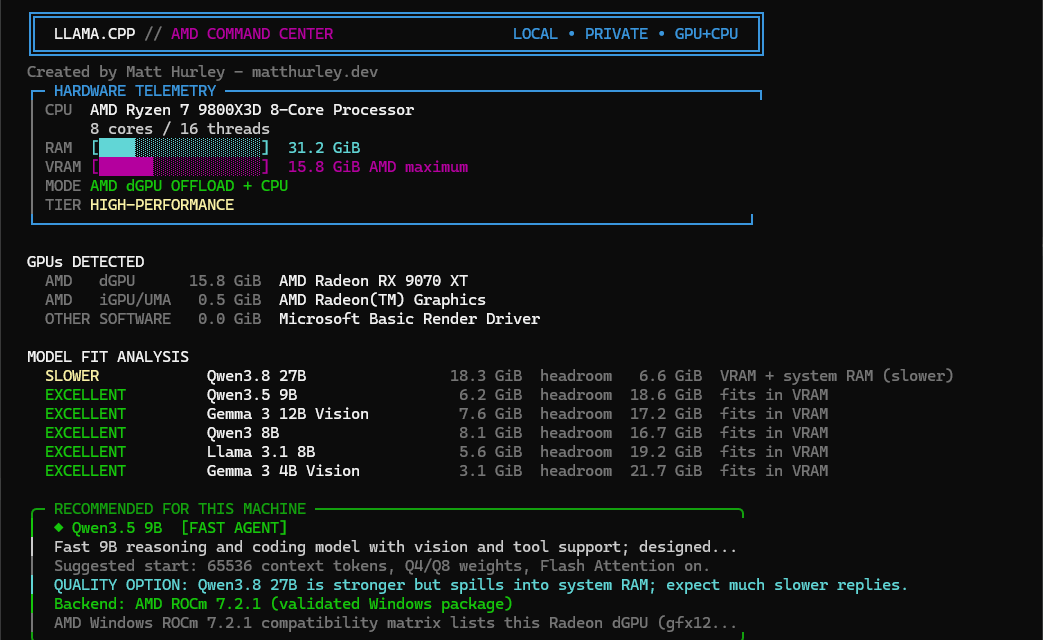
Scans your hardware, picks a model that fits, and verifies every download. Nothing downloads until you type YES.
Copilot Chat, including Agent
One option adds the model to GitHub Copilot Chat. Your Copilot account and cloud models are untouched.
Health check
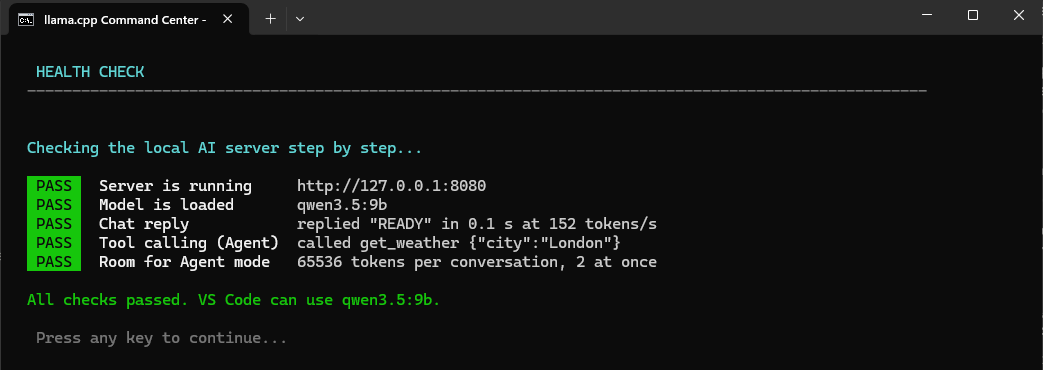
Tests chat, tool calling, and memory in about 10 seconds, and explains any failure in plain English.
Before you start
- Windows 10 or 11 (64-bit).
- An AMD Radeon graphics card. 12–16 GB cards such as the RX 7700 XT, 7900, 9060 XT or 9070 XT work best. Older Radeon cards and Ryzen processors with built-in Radeon graphics also work, more slowly.
- Any modern processor. AMD Ryzen and Intel CPUs are both fine. Intel CPUs are supported as the main processor; Intel graphics are not used to run models.
- About 20 GB of free disk space and an internet connection for the one-time downloads. After that, everything runs offline.
- Optional: VS Code with the GitHub Copilot Chat extension. You can also just chat in your web browser.
No programming or AI knowledge is needed. The menu explains each step and always asks before downloading anything.
Words you will see
| Word | What it means |
|---|---|
| Model | The AI itself: one large file (about 6 GB). You can download several and switch between them. |
| AI server | A program that loads the model onto your graphics card so apps can talk to it. It runs in its own window; close the window and the AI stops. |
| VRAM | Your graphics card's own memory. A model that fits entirely in VRAM replies quickly. |
| Context | How much of the conversation and your code the model can keep in mind at once, measured in tokens (roughly three-quarters of a word each). |
| Agent mode | A Copilot mode where the AI can read and edit files in your project. |
| Backend (ROCm / Vulkan) | The engine that runs the model on your graphics card. The setup picks the right one for you. |
Quick start
Allow about 15 minutes, most of it the one-time 6 GB model download. Prefer a normal Windows app? Run the llamacpp-command-center-setup-vX.Y.Z.exe installer from the latest release instead; it installs per user and bundles everything the app needs. It is not code-signed yet, so SmartScreen may warn.
- Update your AMD graphics driver (AMD Software: Adrenalin Edition).
- Download the ZIP from the latest release, right-click it, choose Extract All, and open the extracted folder. Do not run it from inside the ZIP.
- Double-click
Start-LlamaCpp.cmd. Windows may show a SmartScreen warning because the file came from the internet. If you downloaded it from the release page, choose More info → Run anyway. - In the window that opens, press the big orange button (Set up and start; in the text menu this is E, Easy start). It scans your PC, shows what it will download, and asks you to type
YESonce. It then installs, starts the AI and opens a chat window. It also offers two optional extras: desktop shortcuts and automatic unloading when idle. - Want it in VS Code? Choose [5] Health check (every line should say PASS), then [6] Connect VS Code, type
YES, and follow the four steps it prints.
Prefer to go step by step? [1] Setup and models then [2] Start AI server still work exactly as before.
Every day after that
- Double-click the AI Chat desktop shortcut if you added it, or press the orange Start AI and open chat button in the window. The AI starts and the chat opens. If another app is using a lot of graphics memory, it tells you first.
- Use the chat window, or the model in VS Code.
- Before a game, double-click AI Off (or press Turn off in the window) to give your graphics card back. With auto-unload on, the model also leaves graphics memory by itself after 15 idle minutes and returns on your next message.
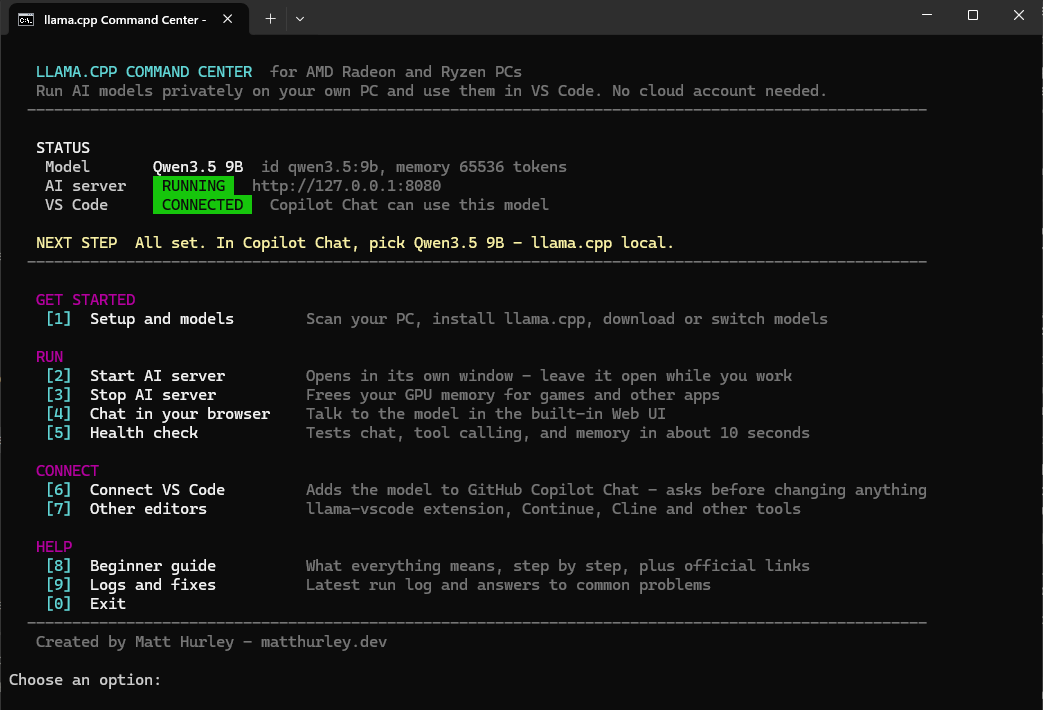
The menu
| Option | What it does |
|---|---|
| [E] Easy start | The one-step path: sets up whatever is missing after a single YES, starts the AI and opens a chat window. |
| [G] Gaming mode | Turn the AI off to free graphics memory, switch auto-unload when idle on or off, and add or remove the AI Chat and AI Off desktop shortcuts. The desktop app's Settings also has game pause: the model unloads while a game holds the set amount of graphics memory, and loads again afterwards. |
| [1] Setup and models | First-time install, model browser, llama.cpp updates, diagnostics, removing a model you no longer need (frees disk space), and uninstall. |
| [2] Start AI server | Starts the model in its own window and waits until it is ready. With several models downloaded, it asks which one to run first; switching is instant and VS Code follows. |
| [3] Stop AI server | Frees GPU memory, for example before gaming. Asks first. |
| [4] Open the chat window | Opens the built-in chat at http://127.0.0.1:8080/ in an app-style Edge or Chrome window (your default browser if neither is found). |
| [5] Health check | Tests the server, a chat reply, tool calling, and memory for Agent mode. |
| [6] Connect VS Code | Adds the model to GitHub Copilot Chat. Backs up first and only edits its own entry. You connect once: after that, switching models updates VS Code automatically. |
| [7] Other editors | llama-vscode, Continue, Cline, and any OpenAI-compatible tool. |
| [8] Beginner guide | Plain-English explanations of every term, plus official links. |
| [9] Logs and fixes | The latest run log and answers to common problems. |
| [M] Live monitor | Server status, active model, and prompt/generation speed, refreshing every 2 seconds. |
| [B] Benchmark | Measures prompt and generation speed with a fixed prompt and keeps a history for comparison. |
Using the model in VS Code
- In VS Code press Ctrl+Shift+P, type Reload Window, and press Enter.
- Open Copilot Chat with Ctrl+Alt+I.
- Click the model name under the chat box and choose Qwen3.5 9B - llama.cpp local.
- Choose Agent to let it read and edit files, or Ask for questions.
Switch back to a cloud model at any time from the same list. Keep the AI server running while you use the local model.
Which model?
The setup recommends the strongest tool-capable model that fits entirely in your graphics card's memory. Models that spill into system RAM still work, but reply several times more slowly.
| Model | Download | Agent mode | Vision | Notes |
|---|---|---|---|---|
| Qwen3.5 9B | 6.2 GB | ✓ | ✓ | Recommended for 12–16 GB Radeon cards. On an RX 9070 XT: fully on the GPU (33/33 layers), 64k context. First measured run: median 13.3 tokens/s, 235 ms to first token, on a busy desktop — see benchmarks/results. Earlier 45–90 t/s figures were never reproduced and stay labelled unverified. |
| Qwen3.8 27B | 18.3 GB | ✓ | ✓ | Strongest answers, but on a 16 GB card part of it runs from system RAM: roughly 4–7 tokens/s. |
| Qwen3 8B | 8.1 GB | ✓ | High-quality 8-bit weights. | |
| Llama 3.1 8B | 5.6 GB | ✓ | Proven general-purpose model. | |
| Gemma 4 12B (new) | 6.9 GB | ✓ | ✓ | Google's April 2026 model. Tool calling works in current llama.cpp but hasn't been tested with Copilot Agent mode here. Needs the Vulkan or llama.cpp ROCm (latest) backend: AMD's ROCm 7.2.1 package can't load it. |
| Gemma 3 12B | 7.6 GB | ✓ | Chat and image understanding. | |
| Gemma 3 4B | 3.1 GB | ✓ | For 8 GB systems and Ryzen integrated graphics. | |
| Qwen3 4B | 2.3 GB | ✓ | Smallest and fastest; good for CPU-only machines. | |
| Ornith 1.5 9B (experimental) | 6.2 GB | ✓ | ✓ | A community-tuned version of Qwen3.5 9B aimed at coding; its makers' claims haven't been checked here. AMD's ROCm 7.2.1 package can't load it (the menu stops you before downloading). It needs the Vulkan backend, which crashed during long sessions on an RX 9070 XT, or the advanced llama.cpp ROCm (latest) backend, which should load it but hasn't been tested with it here. |
How it is tuned for Copilot, and why
These settings came from diagnosing real Copilot failures on an RX 9070 XT. They are applied automatically when you activate a model.
| Setting | Value | Why |
|---|---|---|
| Context per conversation | 65,536 tokens | Copilot's Agent prompt alone is 26k–40k tokens. Below about 32k, VS Code fails with No lowest priority node found. |
| Conversations at once | 2 (131,072-token pool) | VS Code can send a second large request while an Agent turn runs. With room for only one, both fail with Server error: 500. |
| Thinking | Off for tool-capable models | With thinking on, Qwen often hides its tool call inside the thinking text and VS Code shows Sorry, no response was returned. |
| VS Code token budget | 57,344 in / 8,192 out | Matches one conversation's context. |
| Network | 127.0.0.1 only | Other devices on your network cannot reach the server. |
Troubleshooting
Start with [5] Health check. It names the failing step and what to do.
| What you see | What to do |
|---|---|
| Health check: Server is running fails | Choose [2] and wait for READY. Loading takes 5–60 seconds. |
| No lowest priority node found | The context is too small for Copilot. In [1] activate your model again (it now gets 64k), then stop and start the server. |
| Sorry, no response was returned | Re-activate the model in [1] so thinking is turned off, then restart the server. |
| Server error: 500 / Context size has been exceeded | Re-activate the model in [1] for the two-conversation setting, then restart the server. |
| ERR_CONNECTION_RESET | The server stopped mid-reply. Start it with [2] and click Try again. |
| Model missing from Copilot's list | Run [6] again, then Reload Window in VS Code. |
| Replies are very slow | Pick a model marked VRAM (not VRAM+RAM) in the model browser. |
| Graphics card not detected | Update the AMD driver, restart Windows, then run Diagnostics from [1]. |
| The server window closed by itself | Choose [9] Logs and fixes, then start it again with [2]. |
PC froze or blue-screened, or the log says device lost | On a Radeon that supports ROCm (such as the RX 9070 XT), use the ROCm backend. Vulkan crashed during long sessions on that card; ROCm ran for days without a fault. |
AMD backends
ROCm
AMD's validated Windows package (ROCm 7.2.1) for Radeon cards on AMD's list, such as the RX 9070 XT. Fastest on supported cards.
Vulkan
The official llama.cpp Vulkan build for Ryzen integrated graphics, older Radeon cards, and everything else. On cards that support ROCm, stay on ROCm: on an RX 9070 XT, Vulkan crashed during long sessions.
llama.cpp ROCm (latest)
Advanced and opt-in. llama.cpp's own Windows ROCm build, updated with every llama.cpp release, for newer models such as Gemma 4. It needs AMD's ROCm runtime libraries installed separately. Setup checks that it can see your Radeon and, if not, keeps your previous llama.cpp.
The setup chooses ROCm or Vulkan automatically on a fresh install; the backend selector in [1] lets you override it. Updates keep the backend you have installed.
Other editors and tools
- llama-vscode: the official llama.cpp VS Code extension (
ggml-org.llama-vscode). Option [7] installs it and points its endpoint settings at your server. Your other settings are kept, and if yoursettings.jsonhas comments it shows the lines to paste instead. - Continue: option [7] adds a marked, removable block to Continue's
config.yaml(backed up first). If you already have your ownmodels:list, it shows the lines to paste instead of editing the file. - Cline and OpenAI-compatible tools: base URL
http://127.0.0.1:8080/v1, modelqwen3.5:9b, API keylocal. - Claude Code needs an Anthropic-compatible gateway; this project does not install or claim support for one.
Safety and privacy
- Nothing is installed or downloaded until you choose it and confirm.
- Model files are checked against their published SHA-256 values before activation. AMD publishes no SHA-256 for its ROCm package, so its hash is recorded locally instead.
- The server listens on
127.0.0.1only and needs no API key. - Editor settings (VS Code Chat, llama-vscode, Continue) change only when you choose to connect that editor. Each file is backed up first and only this project's own entries are edited. GitHub Copilot itself is never changed.
- Only your dedicated Radeon card is used. Ryzen built-in graphics is never used automatically.
- Run logs live in
%LOCALAPPDATA%\Programs\llama.cpp\logs; common keys and tokens are removed automatically.